GUIDE · FREE ONLINE CAD · NO INSTALL
How to use free online CAD, step by step
You do not need to buy, download or install anything to draw in CAD. This guide shows how to use free online CAD in a browser tab: where to click, which commands to learn first, how to open and save DXF and DWG files and when the optional AI assistant helps.
KEY POINTS
The short version
- Open CADCraft in any current browser: nothing to download, and manual drafting needs no account.
- Type a command such as LINE or CIRCLE in the command line, or pick the tool from a toolset.
- Organise the drawing on layers, check objects in Properties and add dimensions.
- Open DXF and DWG files, then save or export DXF to your computer.
- The AI assistant is optional and the only part that uses credits.
What free online CAD really means
Free Online CAD means CAD software you can use without paying and without installing a program. The common kinds are browser tools, open-source desktop programs, limited free plans from vendors, trials and student licences. A trial is not free CAD, and a free plan can limit commercial use, so read the terms before paid work.
CADCraft is the browser kind. The CAD engine is compiled to WebAssembly and runs on your own device inside a tab. It is a 2D system for floor plans, panels, brackets, laser-cut parts and quick sketches. For solid 3D modelling or assemblies, use a 3D program instead.
- Free to open: no payment, no trial timer, no installer
- No account for manual drafting
- 2D drafting with DXF and DWG files
BEFORE YOU START
What you need
Very little. A current version of Chrome, Edge, Firefox or Safari with WebGPU or WebGL2 is enough, on any computer, tablet or phone. A mouse helps for precise picking, and a DXF or DWG file is optional: you can start from a blank drawing or from the built-in sample.
- A current browser with WebGPU or WebGL2
- No installation and no account for drafting
- Optional: a DXF or DWG file to open
STEP BY STEP
Seven steps to your first drawing
The workflow is the same on every system. Follow the steps in order the first time, then use them as a checklist.
Open the editor
Click Open free CAD on this page, or Start drawing for free on the homepage. The editor loads in your browser with toolsets, layers, properties and a command line. Wait for the loading bar to finish; the first load downloads the CAD engine, and later visits start faster.
Look around the workspace
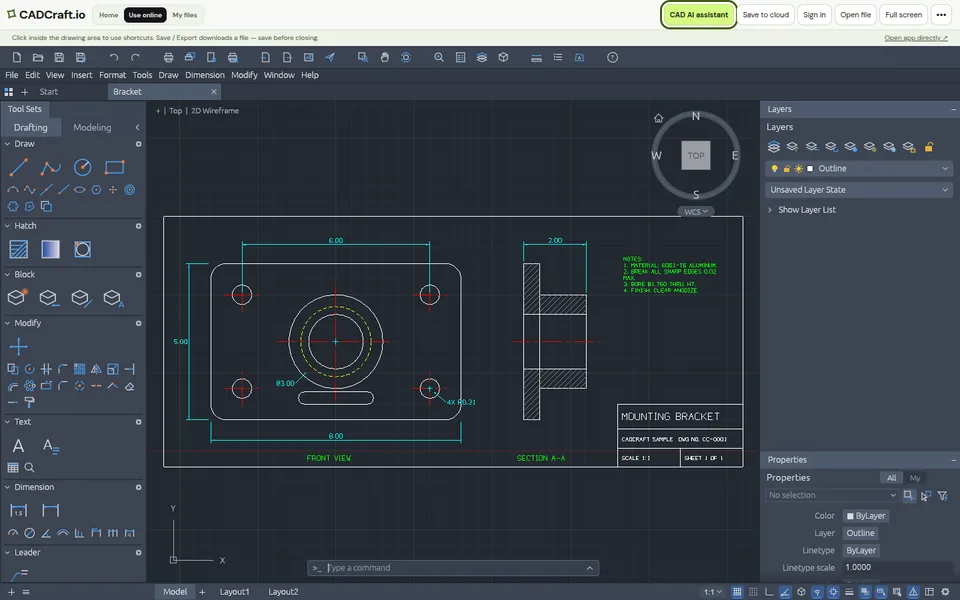
Find the toolsets (Draw, Modify, Dimension, Hatch, Text and Block), the Layers and Properties panels and the command line at the bottom. Choose Sample to load an example drawing and see how a finished drawing looks.
Draw your first shapes
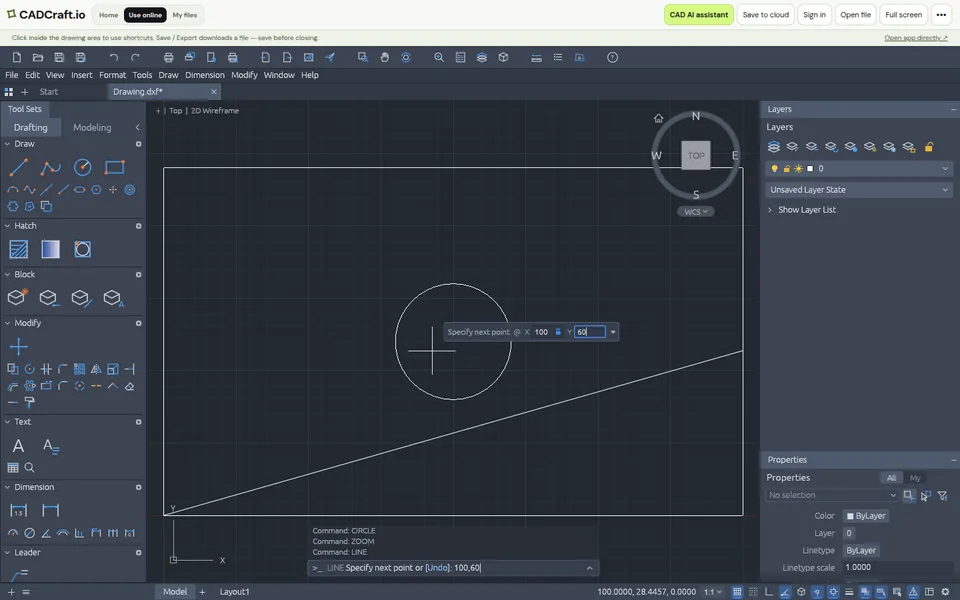
Click inside the drawing area so it receives the keys, type LINE and press Enter, then follow the prompt in the command line and click your points. Try CIRCLE and RECTANG next. Each command asks for the next input, so you can click points or type distances and coordinates.
Edit with MOVE, COPY, OFFSET, TRIM and ERASE
Select objects, then run MOVE or COPY to reposition them, OFFSET to create parallel lines at a distance, TRIM to cut geometry back to an edge and ERASE to delete. Undo with Ctrl + Z (⌘ + Z on macOS) whenever you want to step back.
Organise layers and check properties
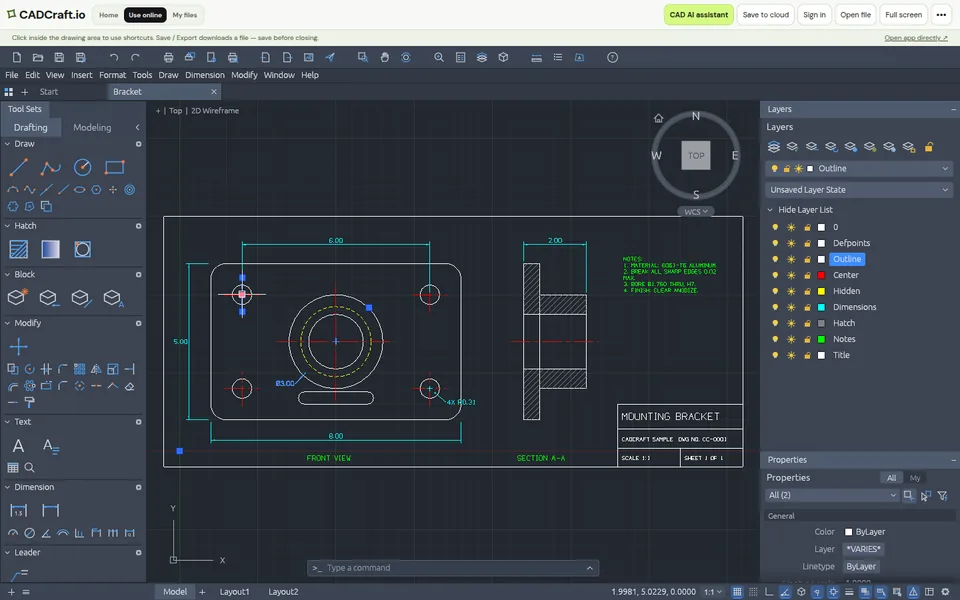
Open the layer list to switch layers on or off, lock them and assign colours. Select an object to see its colour, layer and linetype in Properties. Putting walls, dimensions and text on separate layers keeps drawings easy to edit.
Add dimensions and text
Use DIMLINEAR (shortcut DLI) for linear dimensions and the Text toolset for notes and labels. Turn on object snap (F3) so dimension points land exactly on corners and endpoints, and ortho (F8) to keep lines horizontal or vertical.
Save or export your drawing
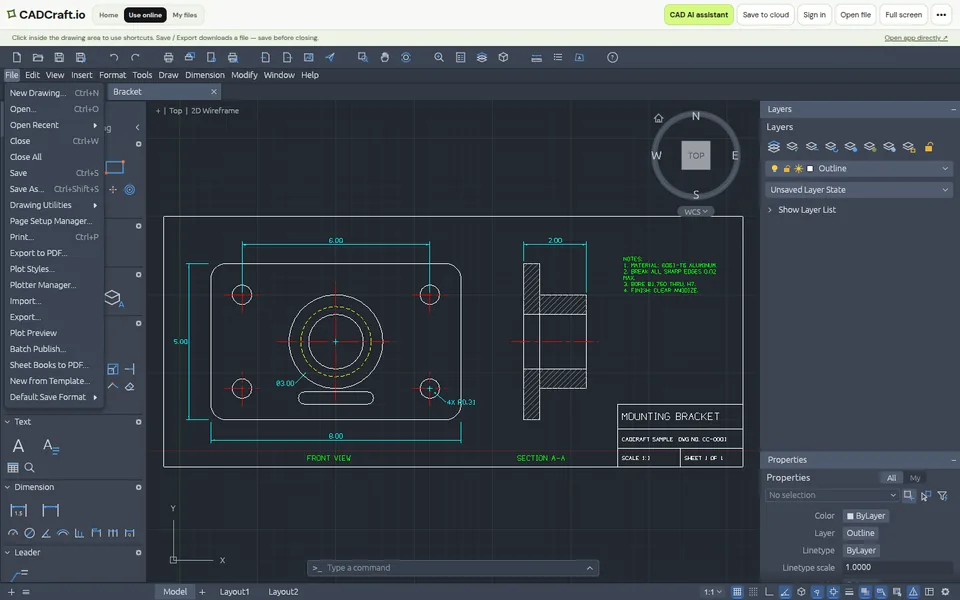
Choose File → Save or Export to download DXF to your device. Save before you close the tab, because a guest drawing stays in the browser until you save or export it. Sign in only if you want Save to cloud and My files.
Open and save DXF and DWG files
To work on an existing drawing, choose Open file or use the File menu and pick a DXF or DWG file from your device. Save and Export download files back to your device, so free online CAD fits the tools your colleagues, suppliers or machine shop already use.
DXF and DWG compatibility varies by file version and content. Keep the original file, review important drawings after opening them and save a copy before you make large changes.
- Open, Save, Save As and Export in the File menu
- Save DXF for other CAD, laser and CNC software
- Optional: sign in and choose Save to cloud to keep chosen drawings in My files (10 MB per drawing, 100 MB per account)
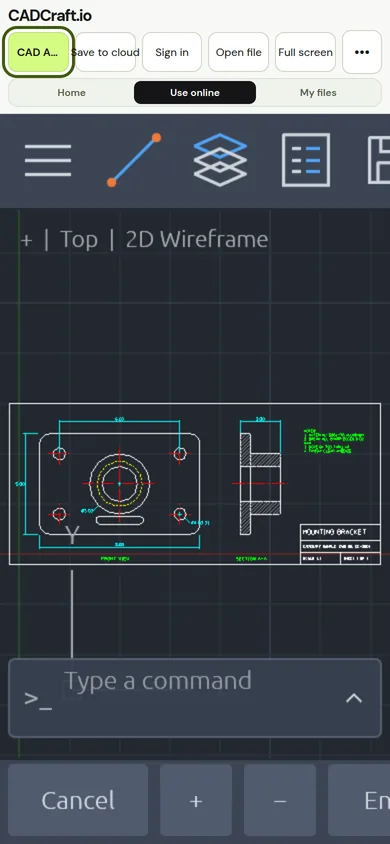
Use free online CAD on a phone or tablet
The editor adapts to small screens. It fills the screen, and the command line stays reachable on touch devices. That makes a phone or tablet useful for checking a measurement, reviewing a DXF on site or sketching an idea.
For long drawing sessions a keyboard and mouse are faster, but the same files, layers and AI assistant are available on every device.
- Full-height editor on phones
- Tap the command line to type commands
- Windows, macOS, Linux, ChromeOS, tablets and phones
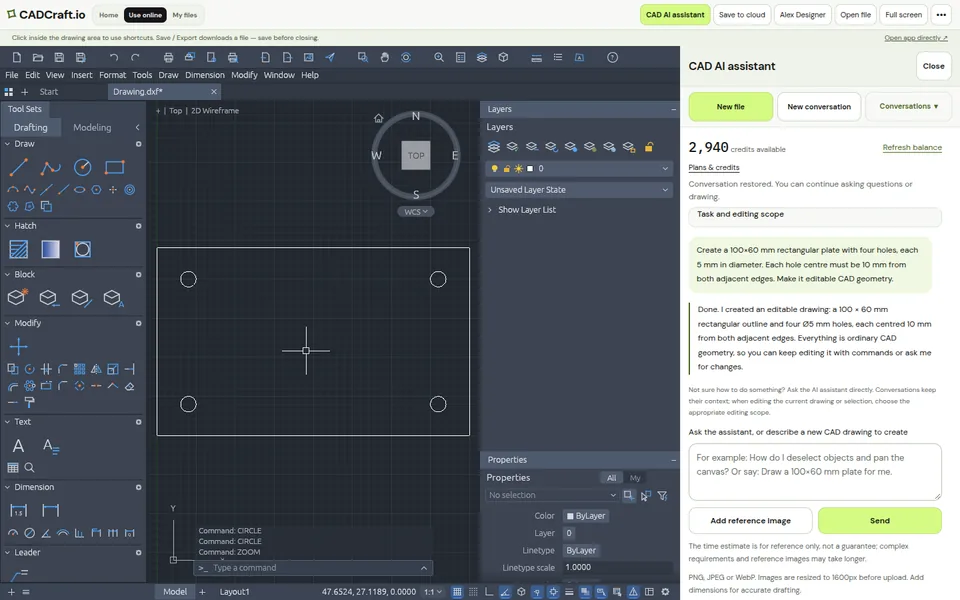
Optional: let the AI assistant do the first draft
If you would rather describe a part than draw it, open CAD AI assistant at the top of the editor. Write what you need with sizes, for example a 100 × 60 mm plate with four 5 mm holes, and the assistant draws ordinary, editable CAD entities on the canvas. You can also ask it how a command works.
Manual drafting stays free. AI requests use credits after you sign in with Google or an email code, and first-time users receive 15 welcome credits. Review every AI drawing before production use.
- Create a new drawing from a description
- Change a selection or the whole drawing
- Ask how to use a tool and get steps in the same chat
SHORTCUTS
Commands worth learning first
Click inside the drawing area first so the canvas receives the keys. On macOS, use ⌘ instead of Ctrl.
| Command or key | What it does |
|---|---|
| L · LINE | Draw lines |
| C · CIRCLE | Draw a circle |
| REC · RECTANG | Draw a rectangle |
| M · MOVE | Move objects |
| CO · COPY | Copy objects |
| O · OFFSET | Offset at a distance |
| TR · TRIM | Trim to edges |
| E · ERASE | Erase objects |
| DLI · DIMLINEAR | Linear dimension |
| Z → E · ZOOM | Zoom to the whole drawing |
| Ctrl + Z | Undo |
| Ctrl + Y | Redo |
| Ctrl + A | Select all |
| Esc | Cancel or clear the selection |
| F3 | Object snap on/off |
| F8 | Ortho on/off |
| Wheel · Middle drag | Zoom and pan |
TIPS
Habits that save time
- Draw at real size in real units, then dimension; do not scale a drawing to fit the screen.
- Use object snap for every point that must meet another object.
- Keep one layer per purpose, such as outline, centre lines, dimensions and text.
- Save early and often, and keep the original file when you edit a DXF or DWG.
- Learn the aliases for LINE, CIRCLE, MOVE, COPY and TRIM; they remove most mouse travel.
GOOD TO KNOW
Limits of free online CAD
- CADCraft is a 2D system: no 3D solid modelling or assemblies.
- DXF and DWG compatibility varies by file version and content.
- AI drawings and answers need your review before production use.
- It needs a current browser with WebGPU or WebGL2, and the first load is large.
FAQ
Questions about using free online CAD
Is CADCraft really free to use?
Yes. Drawing, opening, saving and exporting are free. Only the optional AI assistant uses credits, and new users receive 15 welcome credits.
Do I need to create an account?
No. Manual drafting needs no account. Sign in only to keep drawings in My files or to use the AI assistant.
Can I open DWG files?
Yes. CADCraft opens DXF and DWG files and saves DXF. Compatibility varies by file version, so keep the original and check important drawings.
Are my drawings uploaded?
Not automatically. Guest drawings stay in your browser until you save or export them. Cloud save happens only when you choose it. AI requests send your message and the relevant drawing context to the AI service.
Does it work on a Chromebook, tablet or phone?
Yes. The editor runs in a current browser on Windows, macOS, Linux, ChromeOS, tablets and phones, and adapts to touch screens.
Can I use it for paid work?
Check the terms of any free CAD tool first. For CADCraft, read the licences and terms page. Review drawings carefully before production use.
START NOW
Open the editor and draw your first line
It takes one click and no sign-up. Start from a blank drawing, load the sample or open a DXF or DWG file.