GUIDE
CADCraft Guide: how to use the editor and the CAD AI assistant
Everything you need to start in minutes: open the free editor, draw by hand, then chat with the CAD AI assistant to create and edit drawings. Each button is explained below, in plain words.
KEY POINTS
The short version
- Open the editor and draw straight away. Manual drawing is free and needs no account.
- Sign in with Google or an email code to use the CAD AI assistant, Save to cloud and My files.
- Use Chat to ask questions or describe a new drawing. Use Edit current drawing to choose Whole drawing, Selected objects or Add to current drawing.
- The top of the assistant has New conversation to clear the chat context and Conversation history to bring back an earlier chat. Neither deletes a drawing.
- Your latest generated drawing comes back after you refresh the page, and choosing a past drawing opens it in the editor.
STEP BY STEP
Eight steps from the first click to a saved drawing
Follow the steps in order the first time, then keep them as a checklist.
Open the editor
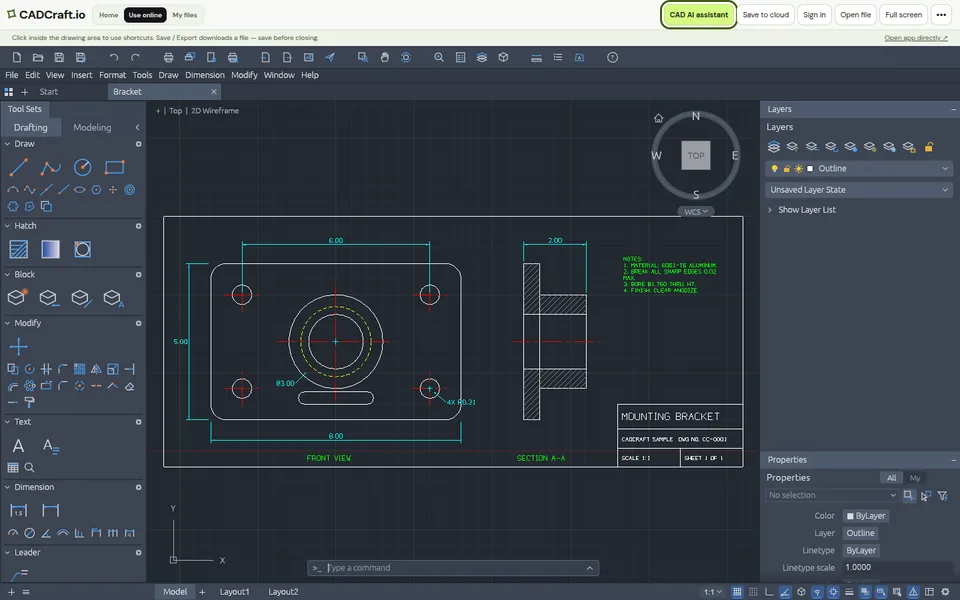
Click Open CADCraft CAD Online. The editor loads in your browser with toolsets, layers, properties and a command line. The first visit downloads the CAD engine, so wait for the loading bar to finish.
Draw by hand
Click inside the drawing area, type a command such as LINE or CIRCLE and press Enter, then follow the prompts. Manual drawing, opening, saving and exporting never use credits.
Sign in when you want AI or cloud saving
Choose Sign in and continue with Google or an email code. New accounts receive 15 welcome credits once. You can keep drawing while signed out.
Open the CAD AI assistant
Click CAD AI assistant at the top of the editor. The chat panel opens beside the drawing, and the drawing stays in view.
Ask or describe
Choose Chat, type your message and press Enter to send. Press Shift + Enter or ⌘/Ctrl + Enter for a new line. Ask how to do something in CAD, or describe the drawing you want, for example a 100×60 mm plate with four 8 mm holes.
Review the result
A new drawing opens automatically as a new tab in the editor, and your current drawing is kept. When you edit the current drawing or a selection, the result waits until you choose Apply to CAD.
Refine in the same conversation
Keep chatting to change dimensions, add objects or ask why something looks the way it does. The conversation remembers what was said earlier.
Save or export
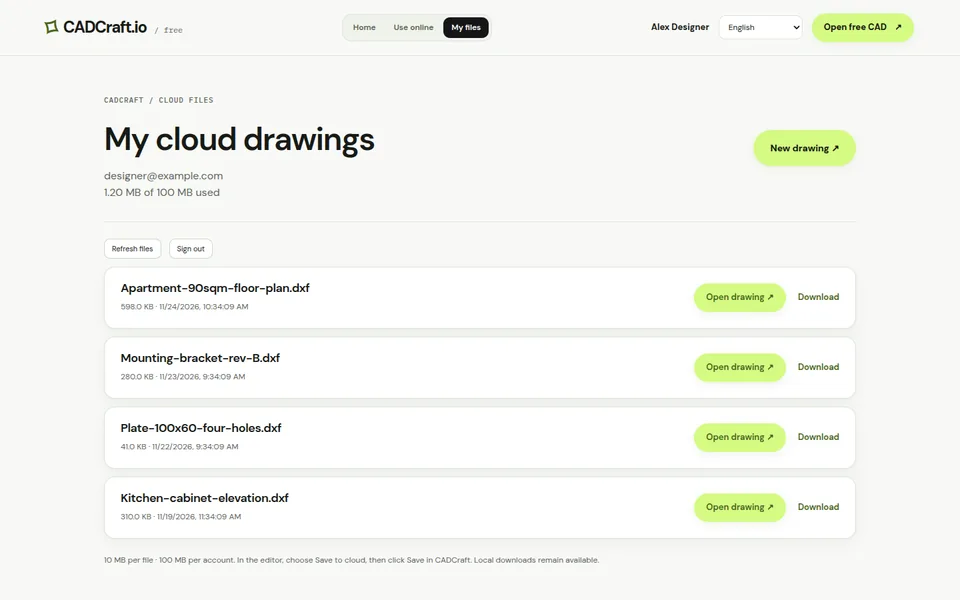
Use Save to cloud to keep the drawing in My files, or File → Save or Export to download a DXF to your computer. Manual edits are not saved automatically, so save before closing the tab.
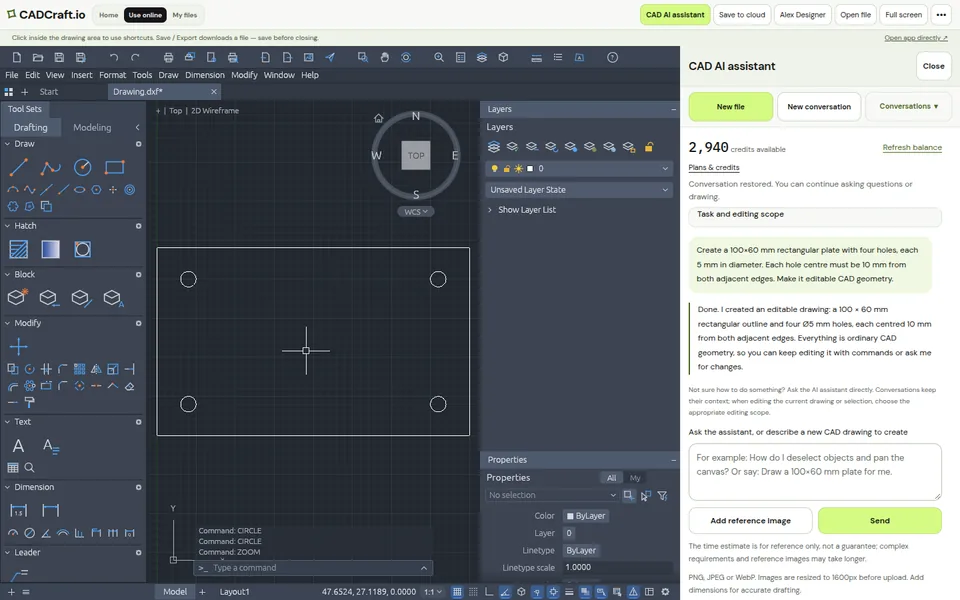
Create a new drawing with the CAD AI assistant
Choose Chat and describe the drawing you want; there is no separate create mode. The assistant writes a CAD file, saves it to your account and opens it as a new document in the editor, so your current drawing is never overwritten.
Be specific about size, units and quantity. Short, concrete requests such as a floor plan with two rooms and a 900 mm door give the best results.
- Mention units (mm, cm, m or inches) and the main dimensions.
- Describe layers or text only when you need them.
- If a request is unclear, the assistant may ask a question first. Answer it in the same chat to continue.
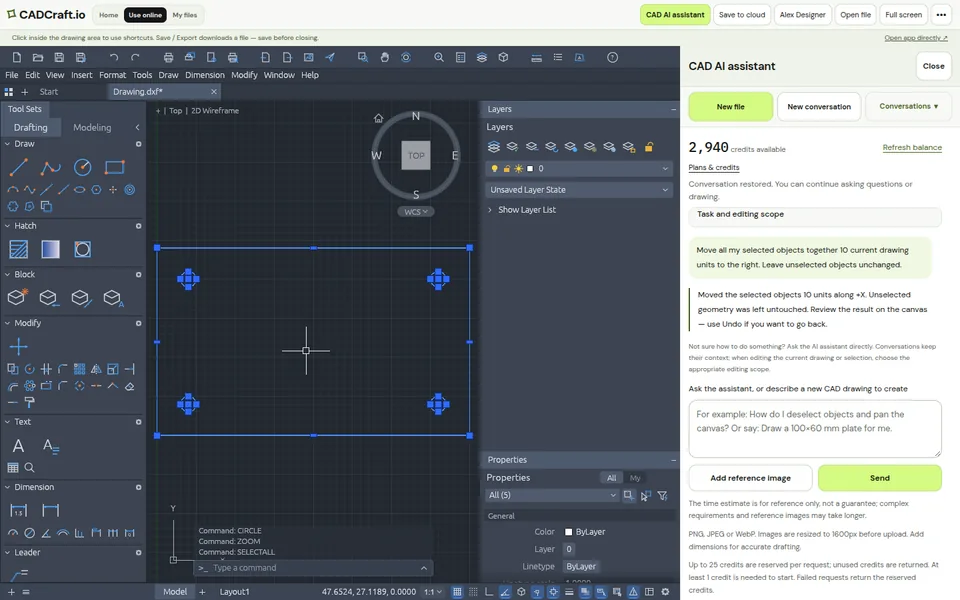
Edit the whole drawing or a selection
To change what you already drew, choose Edit current drawing, then Whole drawing, Selected objects or Add to current drawing. Chat is the default before you have selected any objects. Drag a box around objects in the CAD canvas and the assistant detects them and switches to Selected objects automatically. Detection uses no credits.
The result is shown for review before anything changes. Choose Apply to CAD to accept it, or keep the original. If you change your mind afterwards, use Native CAD undo.
If you switch modes manually, the same unchanged selection will not switch you back. Automatic detection does not interrupt an active request or a result waiting to be applied. When you send an edit request, the current drawing or selection is captured again.
- Add to current drawing keeps every existing object.
- Selected objects touches only the objects you captured.
- Manual edits you make while a result is waiting are protected.
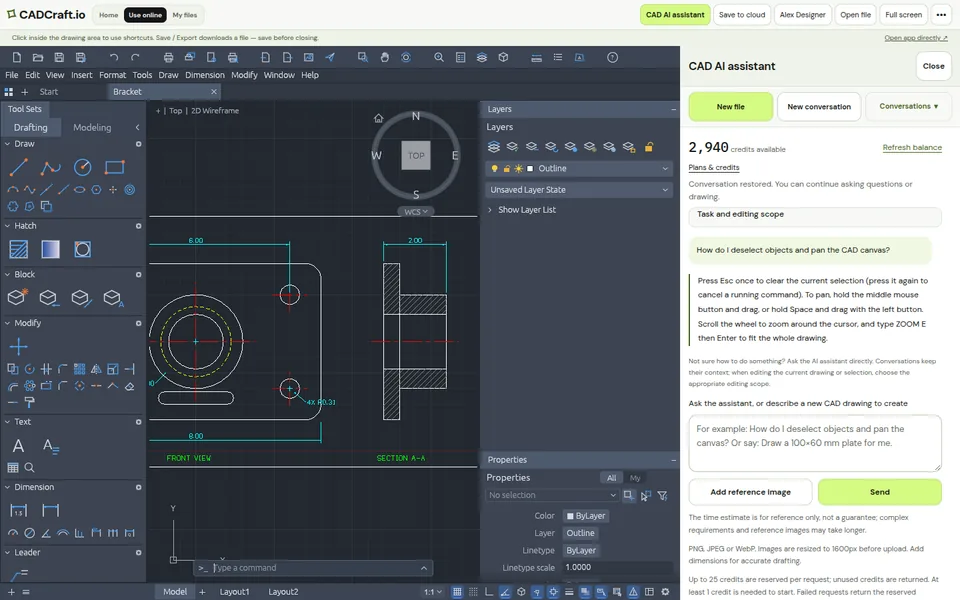
Reference images, pasting and keyboard shortcuts
Each message can carry its own reference image. Click the image button, or copy a picture and paste it with Ctrl + V (⌘ + V on macOS). A small thumbnail appears above the message box and can be removed before sending.
Press Enter to send. Press Shift + Enter or ⌘/Ctrl + Enter to start a new line without sending.
- PNG, JPEG and WebP images are accepted.
- A reference image helps with layout and proportions, but it is not a precise survey. Check the dimensions.
- Complex requests and reference images can take longer to answer.
Refreshing the page, conversation history and drawing history
Generated drawings are saved to your account automatically. After you refresh the page, the editor reopens your most recent generated drawing, and Conversation history brings back earlier chats.
Open Drawing history to see saved drawings and their versions. Choosing a conversation shows its newest drawing in the editor at once. Older versions stay available and open with Open in CAD.
- Changes you make by hand in CAD are not uploaded automatically. Use Save to cloud or File → Save to keep them.
- Saved AI drawings follow the storage period shown in Drawing history, so download a local copy of anything important.
- Sign in with the same account on another device to find your conversations there.
CREDITS
Credits and plans
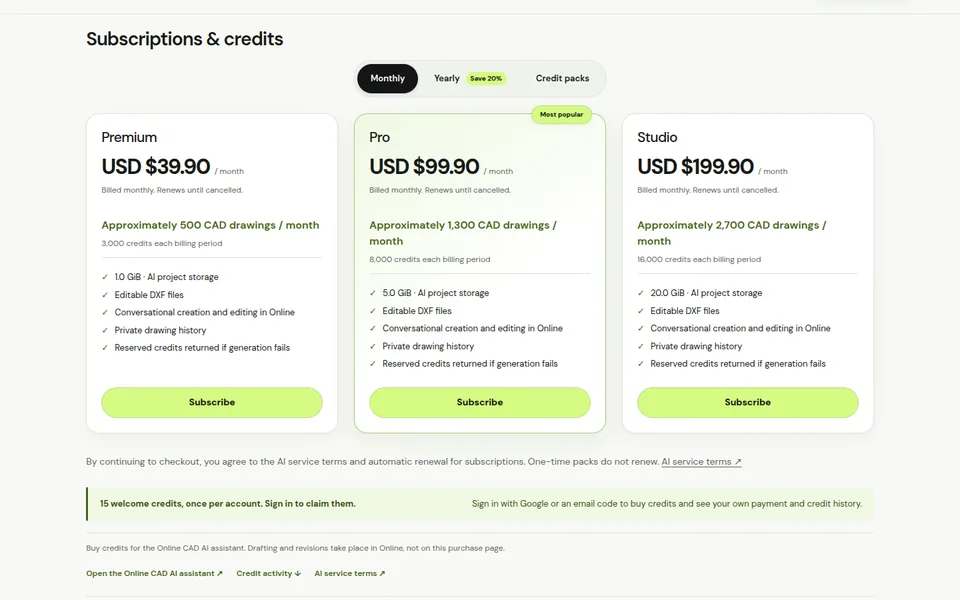
- Drawing by hand, opening files, saving and exporting are free.
- Only AI requests use credits, and new accounts receive 15 welcome credits once.
- If a request cannot be completed, the credits reserved for it are refunded.
- Monthly and yearly plans include credits, and credit packs can be added while a plan is active. Yearly billing saves 20%.
- All plans renew automatically until cancelled, and credit packs are one-time purchases.
BETTER RESULTS
Tips for better prompts
- Say what the drawing is for and name the units.
- Give overall sizes first, then details such as holes, fillets or text.
- Ask for one change at a time when editing, so each result is easy to check.
- Use Selected objects for small edits instead of rewriting the whole drawing.
- Ask the assistant how a command works if you are unsure; chatting is part of the same panel.
GOOD TO KNOW
Limits to keep in mind
- CADCraft is a 2D system: no 3D solid modelling or assemblies.
- AI drawings and answers need your review before production, manufacturing or construction use.
- DXF and DWG compatibility varies by file version and content, so keep the original file.
- The editor needs a current browser, and the first load is large.
FAQ
Frequently asked questions
Where is the Guide?
Open the CAD AI assistant in the editor and click Guide at the top of the panel, or use the Guide link in the footer of every page.
How do Chat, Edit current drawing and the conversation buttons differ?
Chat lets you ask questions or describe an independent new drawing. Edit current drawing changes the drawing you have open, using Whole drawing, Selected objects or Add to current drawing. New conversation only clears the chat context, while Conversation history reopens earlier chats. These buttons do not delete drawings.
I refreshed the page. Is my drawing gone?
No. Generated drawings are saved to your account and the most recent one reopens automatically. Edits you made by hand after generating it are not saved until you use Save to cloud or download the file.
I clicked an old drawing but nothing changed in the editor. What now?
Choose the conversation in Drawing history or Conversation history and its newest version opens in the editor. For an older version, click Open in CAD next to it.
Do I need an account to draw?
No. Manual drawing needs no account. Sign in only for the AI assistant, Save to cloud and My files.
Does chatting cost credits?
Yes. Every AI request uses credits, whether it is a question, a clarification or a drawing. The panel shows your balance, and the credits are refunded when a request fails.
Can I open DWG files?
Yes. CADCraft opens DXF and DWG files and saves DXF. Compatibility varies by file version.
READY TO START
Open the editor and try the assistant
Draw for free, then sign in and ask the CAD AI assistant for your first drawing.